{message}
{details}
{stack && (
{stack}
)}
 👉 **Every time you see this it means you need to do something in the app!**
The rest is just there for your information and deeper understanding. Let's get to it.
## Setup
👉 **Generate a basic template**
```shellscript nonumber
npx create-react-router@latest --template remix-run/react-router/tutorials/address-book
```
This uses a pretty bare-bones template but includes our css and data model, so we can focus on React Router.
👉 **Start the app**
```shellscript nonumber
# cd into the app directory
cd {wherever you put the app}
# install dependencies if you haven't already
npm install
# start the server
npm run dev
```
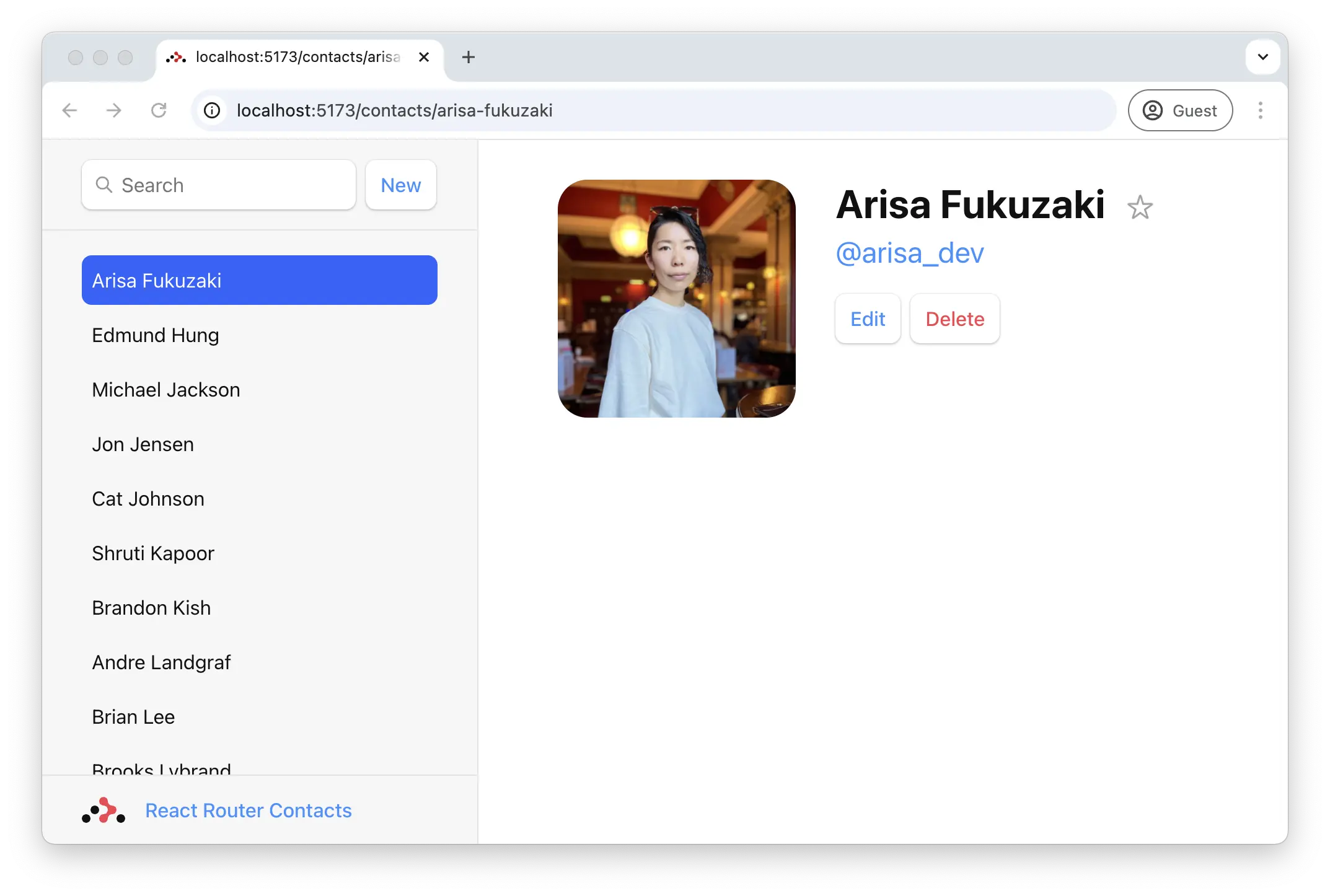
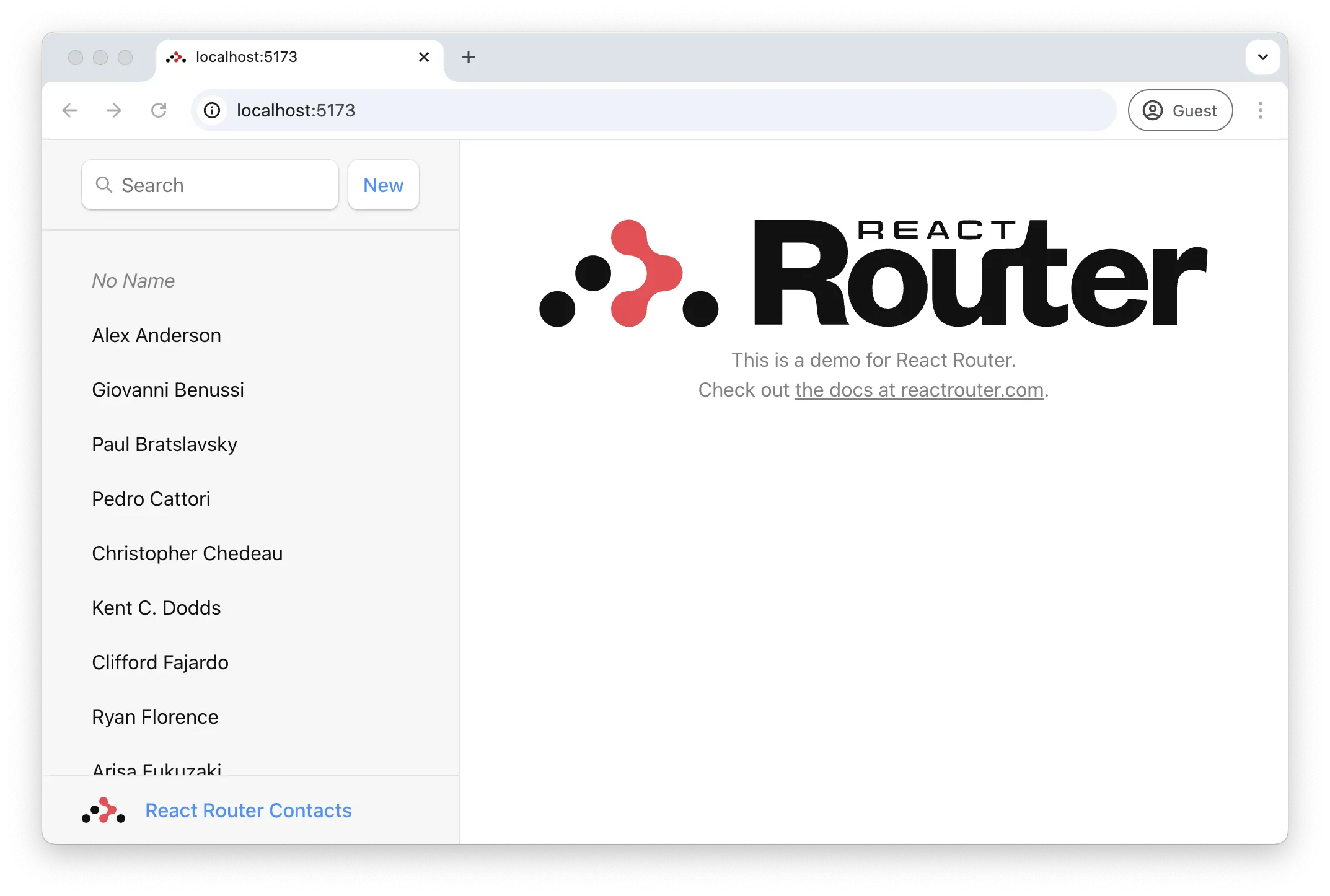
You should now be able to open up [http://localhost:5173][http-localhost-5173] and see your app running, though there's not much going on just yet.
## The Root Route
Note the file at `app/root.tsx`. This is what we call the ["Root Route"][root-route]. It's the first component in the UI that renders, so it typically contains the global layout for the page, as well as a the default [Error Boundary][error-boundaries].
👉 **Every time you see this it means you need to do something in the app!**
The rest is just there for your information and deeper understanding. Let's get to it.
## Setup
👉 **Generate a basic template**
```shellscript nonumber
npx create-react-router@latest --template remix-run/react-router/tutorials/address-book
```
This uses a pretty bare-bones template but includes our css and data model, so we can focus on React Router.
👉 **Start the app**
```shellscript nonumber
# cd into the app directory
cd {wherever you put the app}
# install dependencies if you haven't already
npm install
# start the server
npm run dev
```
You should now be able to open up [http://localhost:5173][http-localhost-5173] and see your app running, though there's not much going on just yet.
## The Root Route
Note the file at `app/root.tsx`. This is what we call the ["Root Route"][root-route]. It's the first component in the UI that renders, so it typically contains the global layout for the page, as well as a the default [Error Boundary][error-boundaries].
{details}
{stack && (
{stack}
)}
{contact.notes}
: null}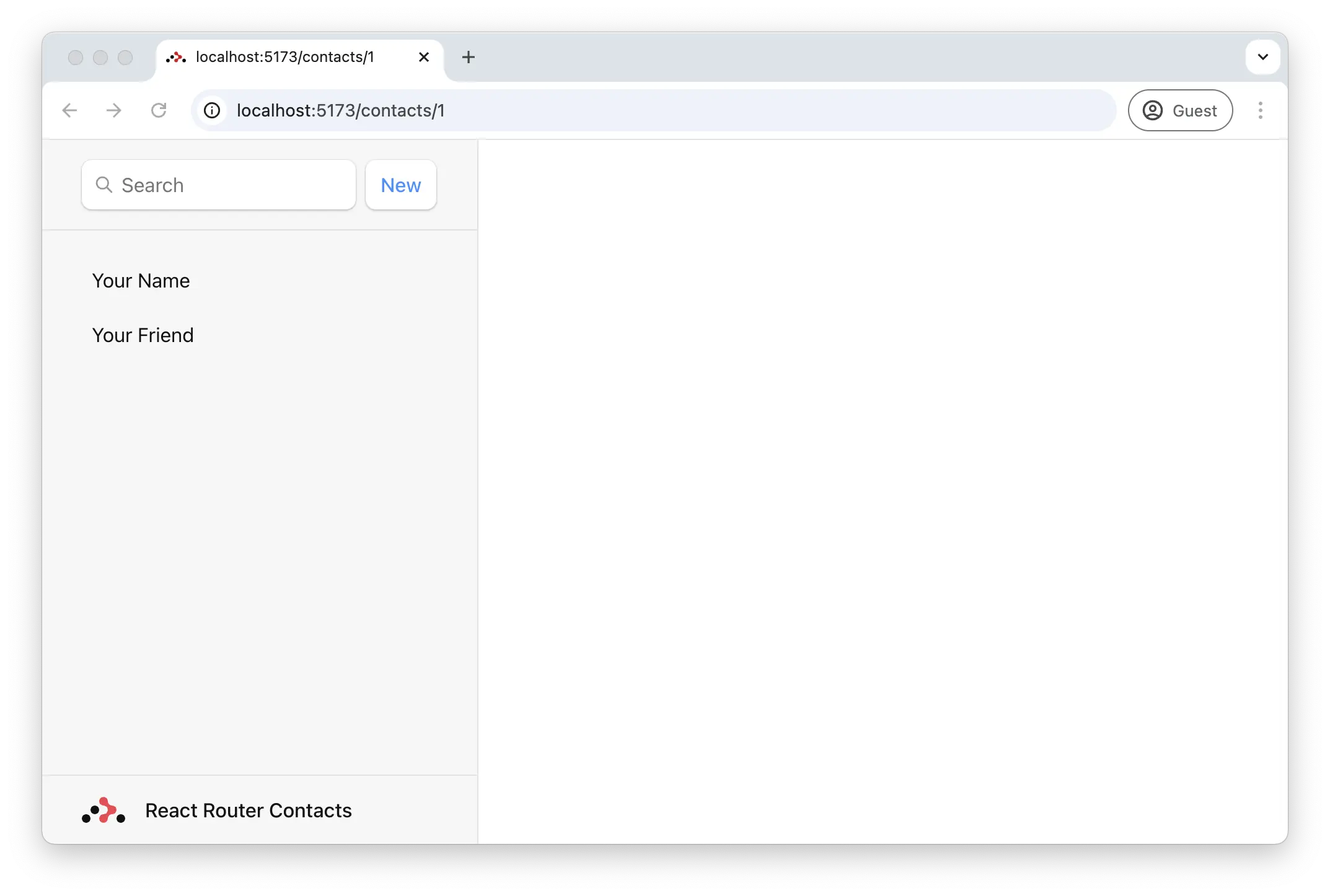 ## Nested Routes and Outlets
React Router supports nested routing. In order for child routes to render inside of parent layouts, we need to render an [`Outlet`][outlet-component] in the parent. Let's fix it, open up `app/root.tsx` and render an outlet inside.
👉 **Render an [`
## Nested Routes and Outlets
React Router supports nested routing. In order for child routes to render inside of parent layouts, we need to render an [`Outlet`][outlet-component] in the parent. Let's fix it, open up `app/root.tsx` and render an outlet inside.
👉 **Render an [`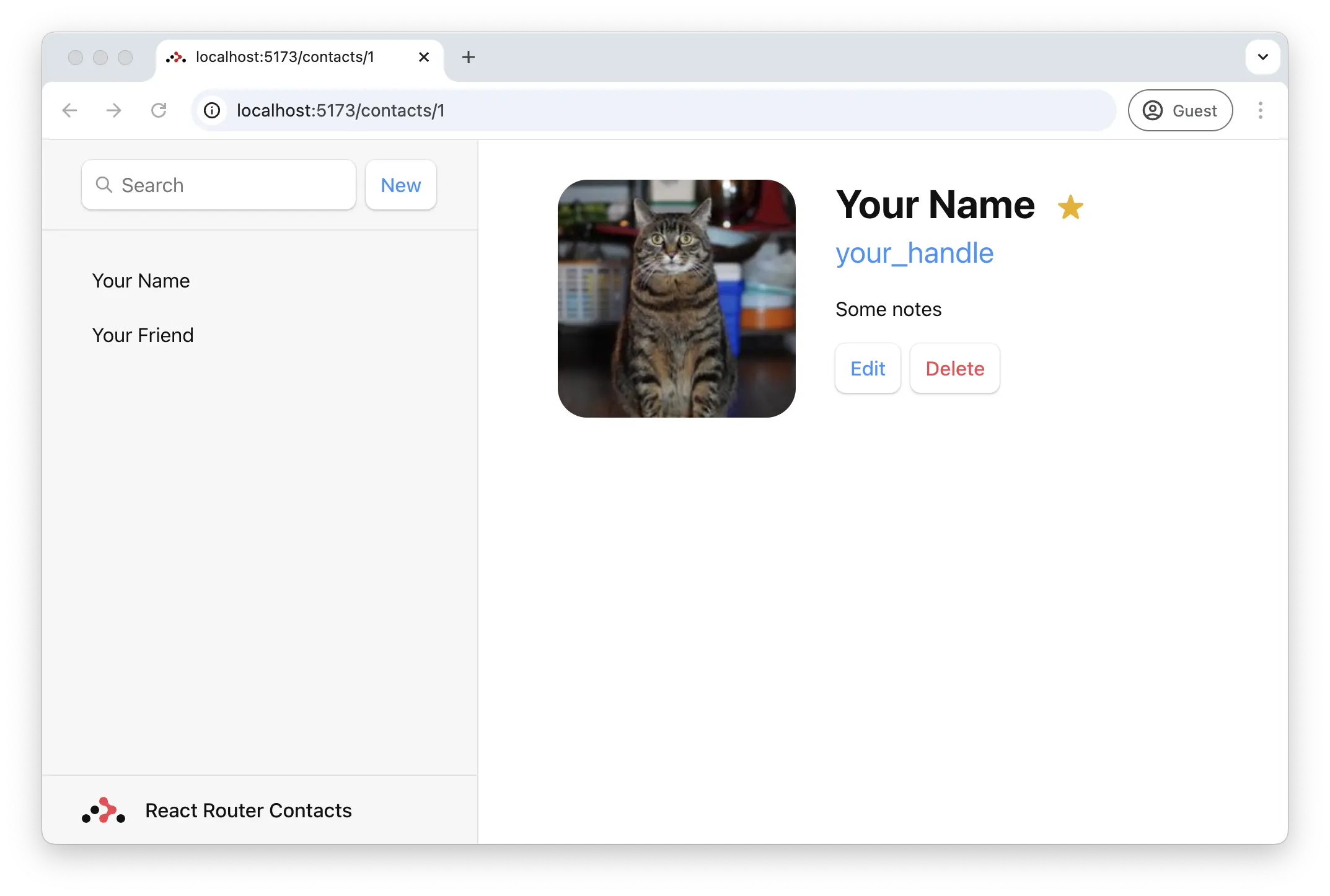 ## Client Side Routing
You may or may not have noticed, but when we click the links in the sidebar, the browser is doing a full document request for the next URL instead of client side routing, which completely remounts our app.
Client side routing allows our app to update the URL without reloading the entire page. Instead, the app can immediately render new UI. Let's make it happen with [``][link-component].
👉 **Change the sidebar `` to ``**
```tsx filename=app/root.tsx lines=[3,20,23]
import {
Form,
Link,
Outlet,
Scripts,
ScrollRestoration,
isRouteErrorResponse,
} from "react-router";
// existing imports & exports
export default function App() {
return (
<>
{/* other elements */}
);
}
```
You can open the network tab in the browser devtools to see that it's not requesting documents anymore.
## Loading Data
URL segments, layouts, and data are more often than not coupled (tripled?) together. We can see it in this app already:
| URL Segment | Component | Data |
| ------------------- | ----------- | ------------------ |
| / | `
## Client Side Routing
You may or may not have noticed, but when we click the links in the sidebar, the browser is doing a full document request for the next URL instead of client side routing, which completely remounts our app.
Client side routing allows our app to update the URL without reloading the entire page. Instead, the app can immediately render new UI. Let's make it happen with [``][link-component].
👉 **Change the sidebar `` to ``**
```tsx filename=app/root.tsx lines=[3,20,23]
import {
Form,
Link,
Outlet,
Scripts,
ScrollRestoration,
isRouteErrorResponse,
} from "react-router";
// existing imports & exports
export default function App() {
return (
<>
{/* other elements */}
);
}
```
You can open the network tab in the browser devtools to see that it's not requesting documents anymore.
## Loading Data
URL segments, layouts, and data are more often than not coupled (tripled?) together. We can see it in this app already:
| URL Segment | Component | Data |
| ------------------- | ----------- | ------------------ |
| / | `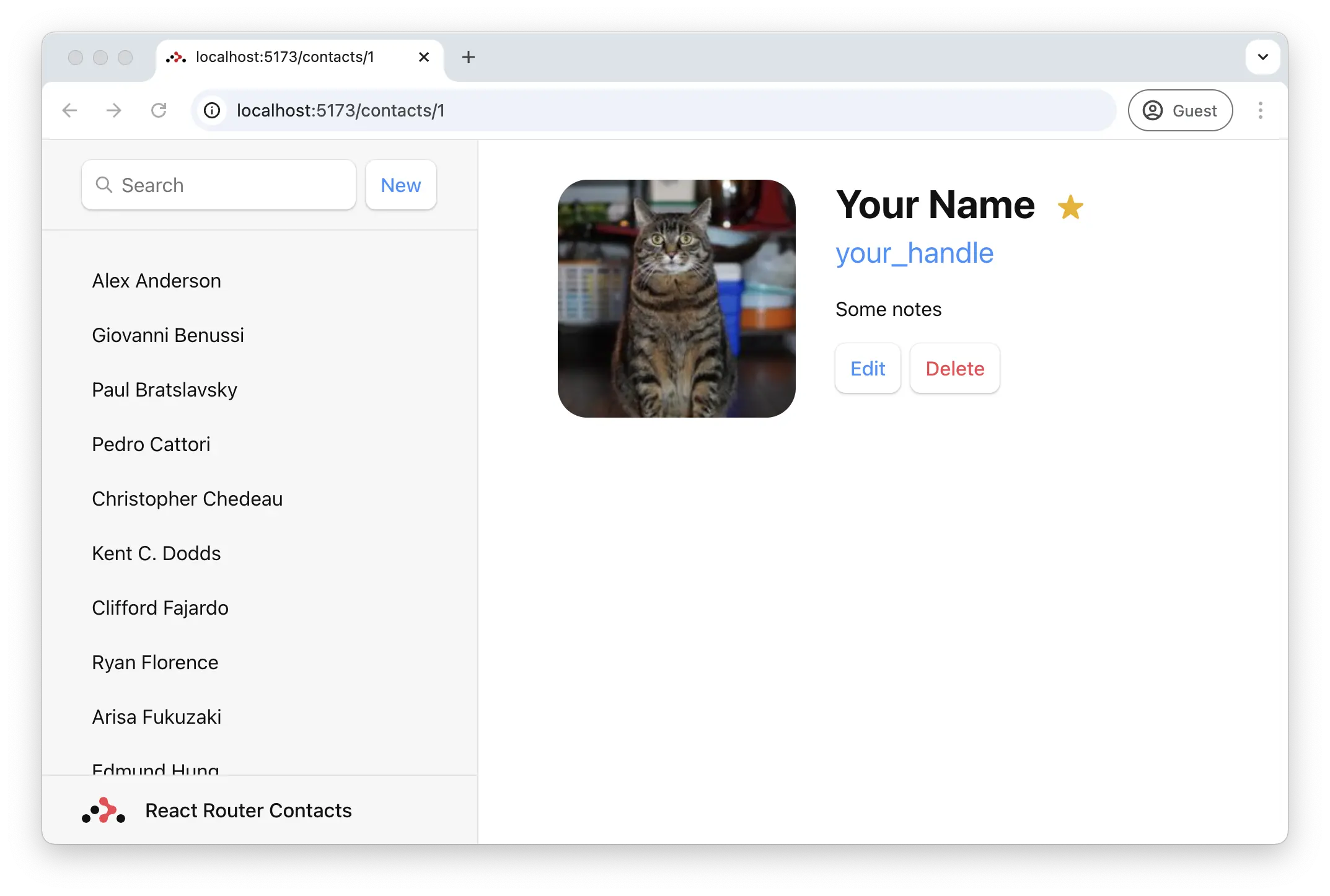 You may be wondering why we're "client" loading data instead of loading the data on the server so we can do server-side rendering (SSR). Right now our contacts site is a [Single Page App][spa], so there's no server-side rendering. This makes it really easy to deploy to any static hosting provider, but we'll talk more about how to enable SSR in a bit so you can learn about all the different [rendering strategies][rendering-strategies] React Router offers.
## Type Safety
You probably noticed that we didn't assign a type to the `loaderData` prop. Let's fix that.
👉 **Add the `ComponentProps` type to the `App` component**
```tsx filename=app/root.tsx lines=[5-7]
// existing imports
import type { Route } from "./+types/root";
// existing imports & exports
export default function App({
loaderData,
}: Route.ComponentProps) {
const { contacts } = loaderData;
// existing code
}
```
Wait, what? Where did these types come from?!
We didn't define them, yet somehow they already know about the `contacts` property we returned from our `clientLoader`.
That's because React Router [generates types for each route in your app][type-safety] to provide automatic type safety.
## Adding a `HydrateFallback`
We mentioned earlier that we are working on a [Single Page App][spa] with no server-side rendering. If you look inside of [`react-router.config.ts`][react-router-config] you'll see that this is configured with a simple boolean:
```tsx filename=react-router.config.ts lines=[4]
import { type Config } from "@react-router/dev/config";
export default {
ssr: false,
} satisfies Config;
```
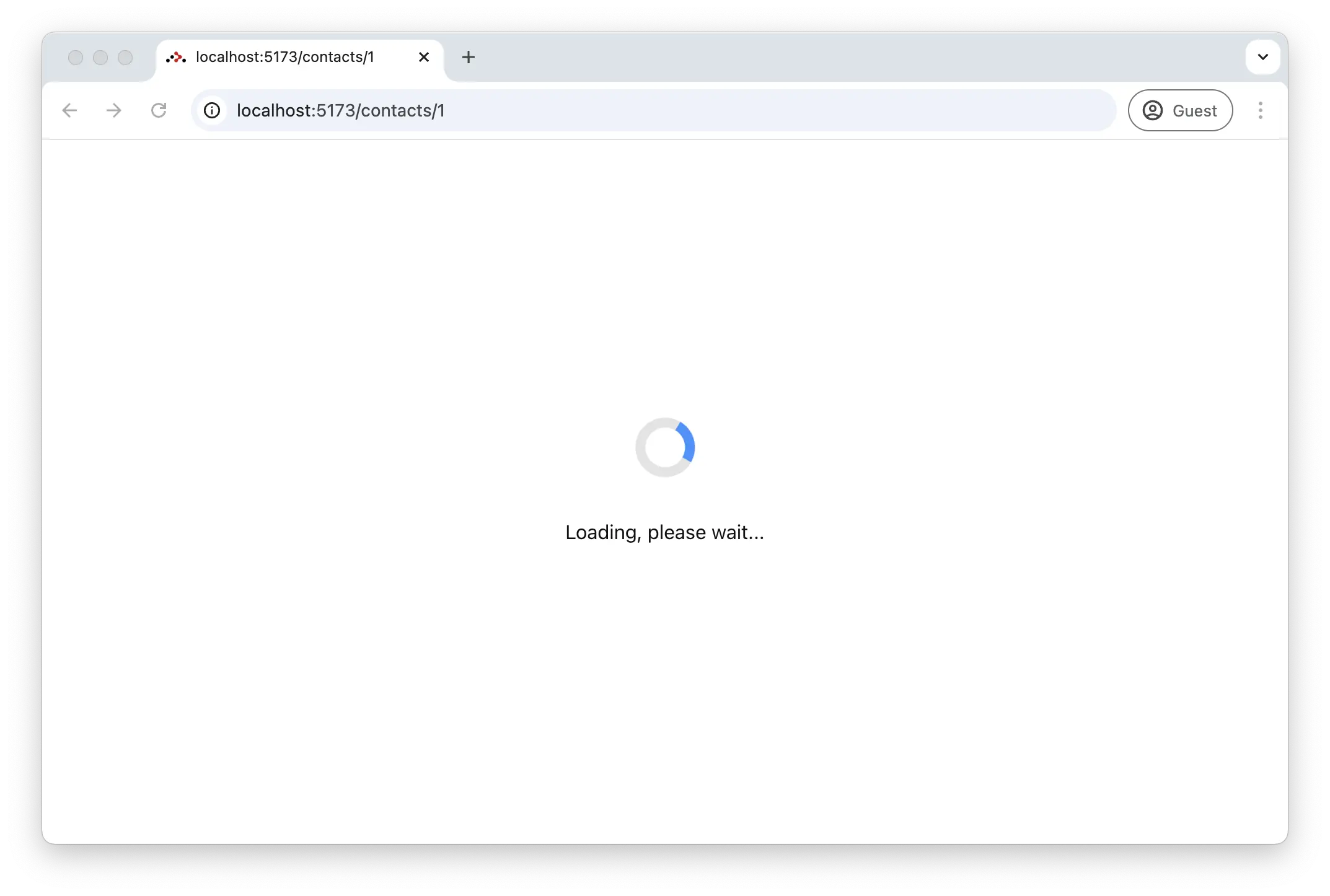
You might have started noticing that whenever you refresh the page you get a flash of white before the app loads. Since we're only rendering on the client, there's nothing to show the user while the app is loading.
👉 **Add a `HydrateFallback` export**
We can provide a fallback that will show up before the app is hydrated (rendering on the client for the first time) with a [`HydrateFallback`][hydrate-fallback] export.
```tsx filename=app/root.tsx lines=[3-10]
// existing imports & exports
export function HydrateFallback() {
return (
You may be wondering why we're "client" loading data instead of loading the data on the server so we can do server-side rendering (SSR). Right now our contacts site is a [Single Page App][spa], so there's no server-side rendering. This makes it really easy to deploy to any static hosting provider, but we'll talk more about how to enable SSR in a bit so you can learn about all the different [rendering strategies][rendering-strategies] React Router offers.
## Type Safety
You probably noticed that we didn't assign a type to the `loaderData` prop. Let's fix that.
👉 **Add the `ComponentProps` type to the `App` component**
```tsx filename=app/root.tsx lines=[5-7]
// existing imports
import type { Route } from "./+types/root";
// existing imports & exports
export default function App({
loaderData,
}: Route.ComponentProps) {
const { contacts } = loaderData;
// existing code
}
```
Wait, what? Where did these types come from?!
We didn't define them, yet somehow they already know about the `contacts` property we returned from our `clientLoader`.
That's because React Router [generates types for each route in your app][type-safety] to provide automatic type safety.
## Adding a `HydrateFallback`
We mentioned earlier that we are working on a [Single Page App][spa] with no server-side rendering. If you look inside of [`react-router.config.ts`][react-router-config] you'll see that this is configured with a simple boolean:
```tsx filename=react-router.config.ts lines=[4]
import { type Config } from "@react-router/dev/config";
export default {
ssr: false,
} satisfies Config;
```
You might have started noticing that whenever you refresh the page you get a flash of white before the app loads. Since we're only rendering on the client, there's nothing to show the user while the app is loading.
👉 **Add a `HydrateFallback` export**
We can provide a fallback that will show up before the app is hydrated (rendering on the client for the first time) with a [`HydrateFallback`][hydrate-fallback] export.
```tsx filename=app/root.tsx lines=[3-10]
// existing imports & exports
export function HydrateFallback() {
return (
Loading, please wait...
 ## Index Routes
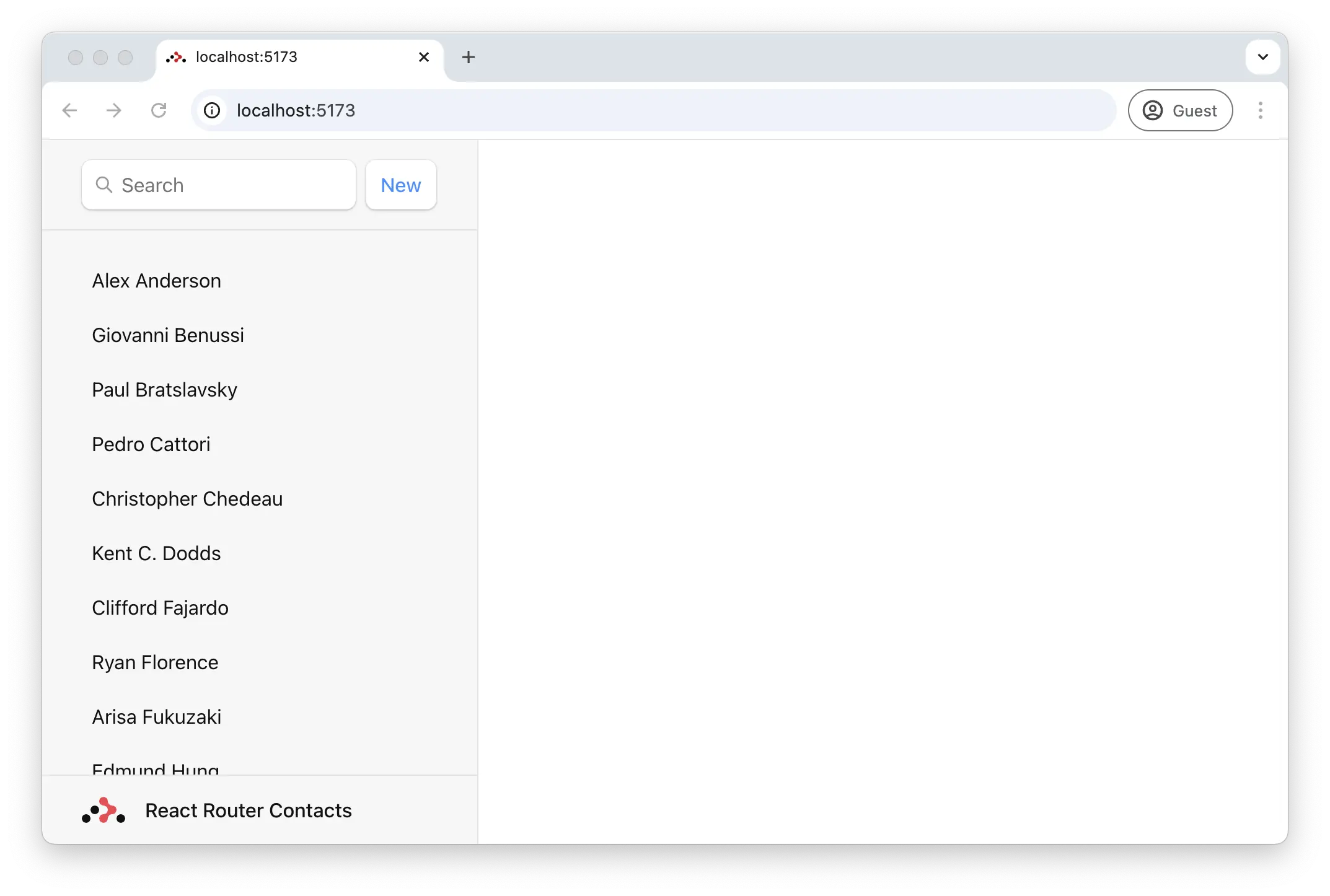
When you load the app and aren't yet on a contact page, you'll notice a big blank page on the right side of the list.
## Index Routes
When you load the app and aren't yet on a contact page, you'll notice a big blank page on the right side of the list.
 When a route has children, and you're at the parent route's path, the `
This is a demo for React Router.
Check out{" "}
the docs at reactrouter.com
.
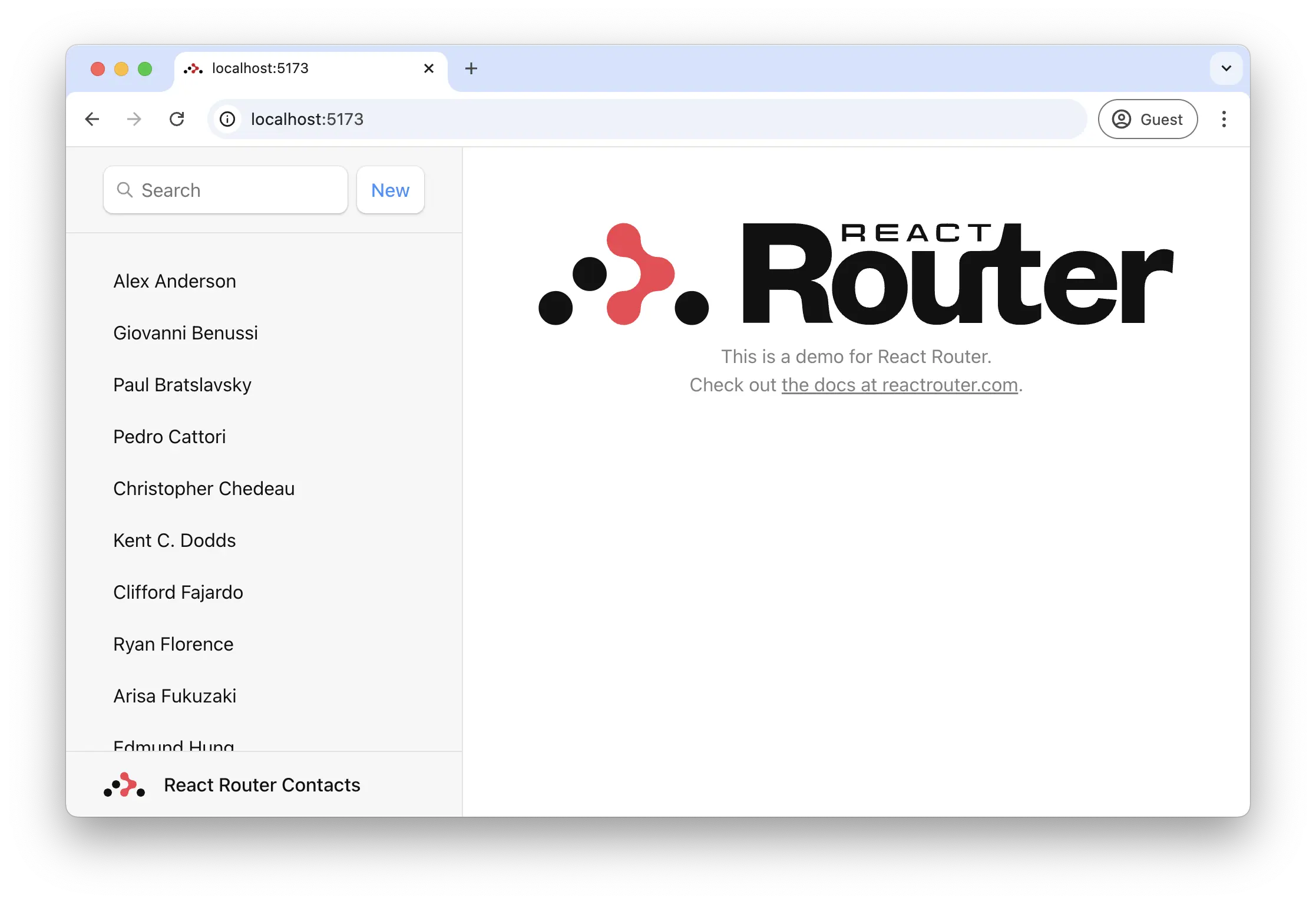 Voilà! No more blank space. It's common to put dashboards, stats, feeds, etc. at index routes. They can participate in data loading as well.
## Adding an About Route
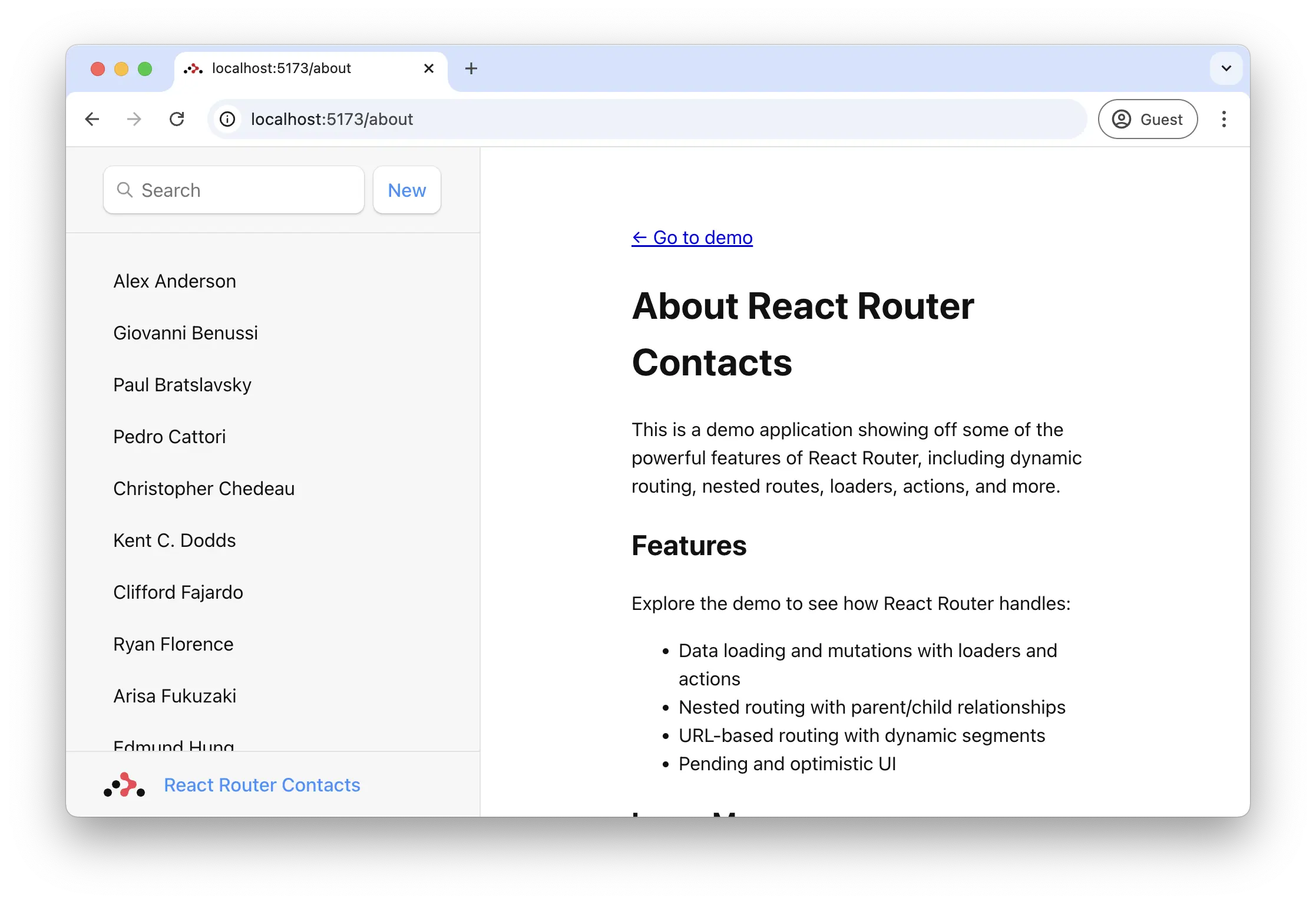
Before we move on to working with dynamic data that the user can interact with, let's add a page with static content we expect to rarely change. An about page will be perfect for this.
👉 **Create the about route**
```shellscript nonumber
touch app/routes/about.tsx
```
Don't forget to add the route to `app/routes.ts`:
```tsx filename=app/routes.ts lines=[4]
export default [
index("routes/home.tsx"),
route("contacts/:contactId", "routes/contact.tsx"),
route("about", "routes/about.tsx"),
] satisfies RouteConfig;
```
👉 **Add the about page UI**
Nothing too special here, just copy and paste:
```tsx filename=app/routes/about.tsx
import { Link } from "react-router";
export default function About() {
return (
Voilà! No more blank space. It's common to put dashboards, stats, feeds, etc. at index routes. They can participate in data loading as well.
## Adding an About Route
Before we move on to working with dynamic data that the user can interact with, let's add a page with static content we expect to rarely change. An about page will be perfect for this.
👉 **Create the about route**
```shellscript nonumber
touch app/routes/about.tsx
```
Don't forget to add the route to `app/routes.ts`:
```tsx filename=app/routes.ts lines=[4]
export default [
index("routes/home.tsx"),
route("contacts/:contactId", "routes/contact.tsx"),
route("about", "routes/about.tsx"),
] satisfies RouteConfig;
```
👉 **Add the about page UI**
Nothing too special here, just copy and paste:
```tsx filename=app/routes/about.tsx
import { Link } from "react-router";
export default function About() {
return (
This is a demo application showing off some of the powerful features of React Router, including dynamic routing, nested routes, loaders, actions, and more.
Explore the demo to see how React Router handles:
Check out the official documentation at{" "} reactrouter.com {" "} to learn more about building great web applications with React Router.
 ## Layout Routes
We don't actually want the about page to be nested inside of the sidebar layout. Let's move the sidebar to a layout so we can avoid rendering it on the about page. Additionally, we want to avoid loading all the contacts data on the about page.
👉 **Create a layout route for the sidebar**
You can name and put this layout route wherever you want, but putting it inside of a `layouts` directory will help keep things organized for our simple app.
```shellscript nonumber
mkdir app/layouts
touch app/layouts/sidebar.tsx
```
For now just return an [`
## Layout Routes
We don't actually want the about page to be nested inside of the sidebar layout. Let's move the sidebar to a layout so we can avoid rendering it on the about page. Additionally, we want to avoid loading all the contacts data on the about page.
👉 **Create a layout route for the sidebar**
You can name and put this layout route wherever you want, but putting it inside of a `layouts` directory will help keep things organized for our simple app.
```shellscript nonumber
mkdir app/layouts
touch app/layouts/sidebar.tsx
```
For now just return an [`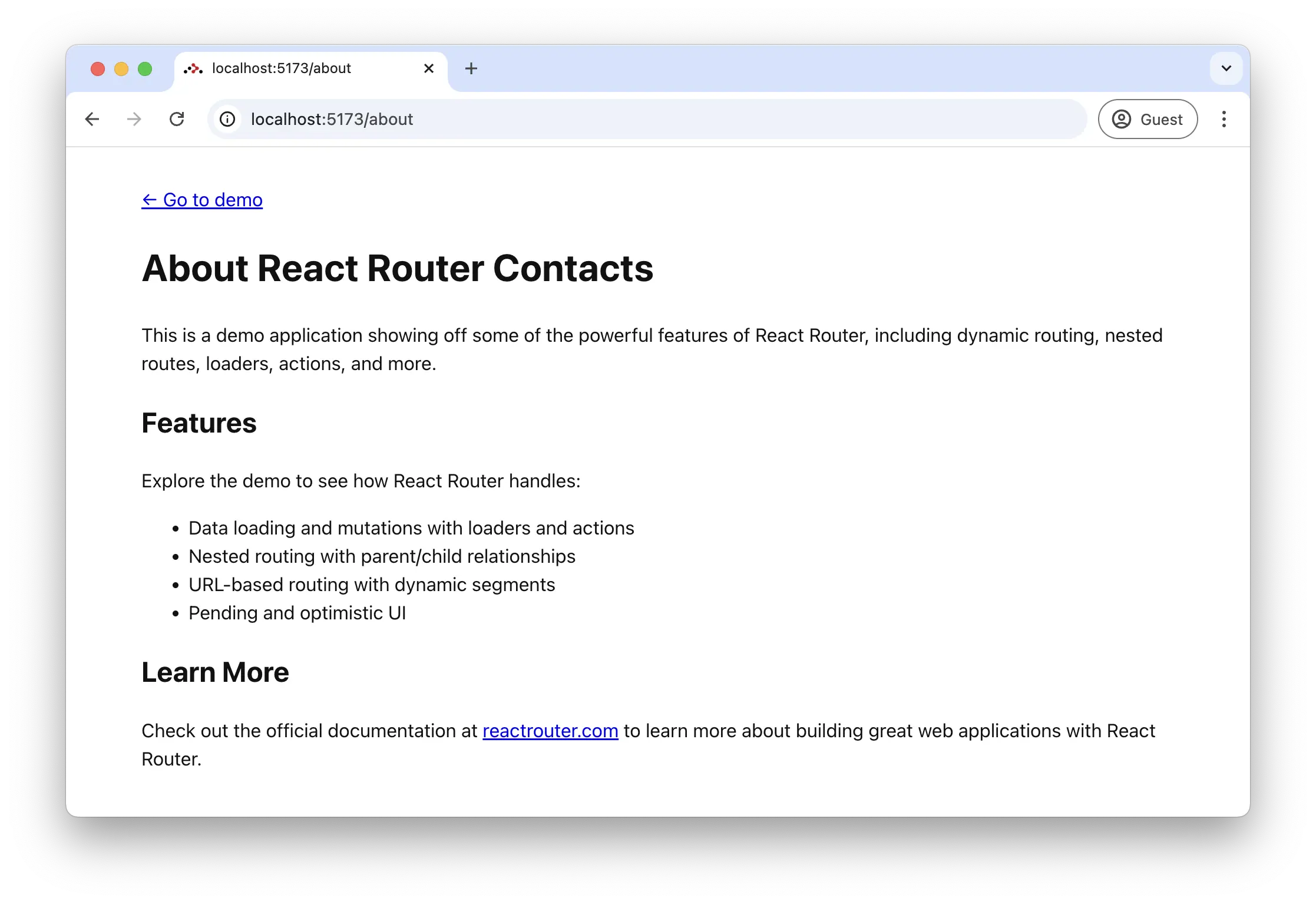 ## Pre-rendering a Static Route
If you refresh the about page, you still see the loading spinner for just a split second before the page render on the client. This is really not a good experience, plus the page is just static information, we should be able to pre-render it as static HTML at build time.
👉 **Pre-render the about page**
Inside of `react-router.config.ts`, we can add a [`prerender`][pre-rendering] array to the config to tell React Router to pre-render certain urls at build time. In this case we just want to pre-render the about page.
```ts filename=react-router.config.ts lines=[5]
import { type Config } from "@react-router/dev/config";
export default {
ssr: false,
prerender: ["/about"],
} satisfies Config;
```
Now if you go to the [about page][about-page] and refresh, you won't see the loading spinner!
## Pre-rendering a Static Route
If you refresh the about page, you still see the loading spinner for just a split second before the page render on the client. This is really not a good experience, plus the page is just static information, we should be able to pre-render it as static HTML at build time.
👉 **Pre-render the about page**
Inside of `react-router.config.ts`, we can add a [`prerender`][pre-rendering] array to the config to tell React Router to pre-render certain urls at build time. In this case we just want to pre-render the about page.
```ts filename=react-router.config.ts lines=[5]
import { type Config } from "@react-router/dev/config";
export default {
ssr: false,
prerender: ["/about"],
} satisfies Config;
```
Now if you go to the [about page][about-page] and refresh, you won't see the loading spinner!
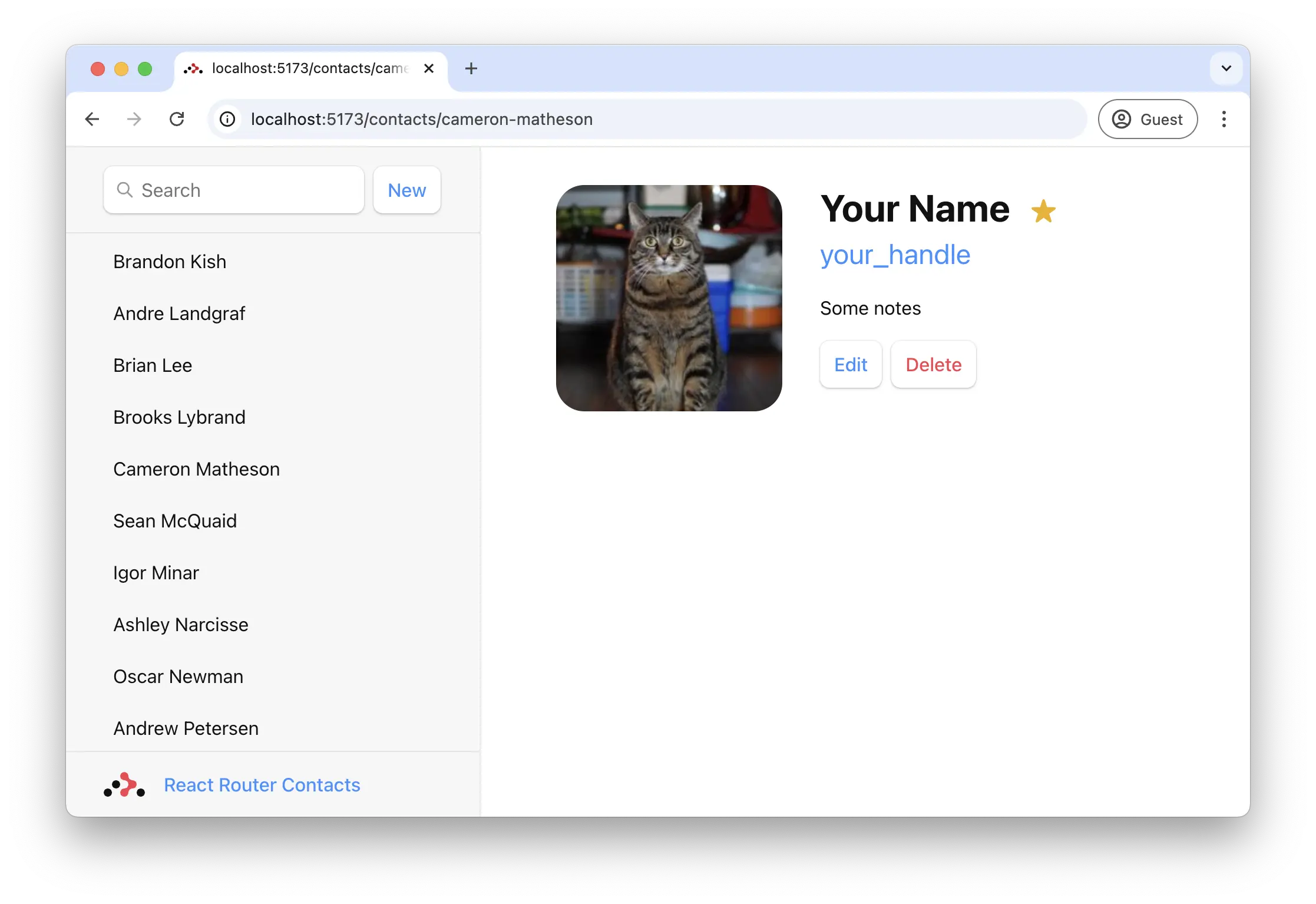 Remember the `:contactId` part of the route definition in `app/routes.ts`? These dynamic segments will match dynamic (changing) values in that position of the URL. We call these values in the URL "URL Params", or just "params" for short.
These `params` are passed to the loader with keys that match the dynamic segment. For example, our segment is named `:contactId` so the value will be passed as `params.contactId`.
These params are most often used to find a record by ID. Let's try it out.
👉 **Add a `loader` function to the contact page and access data with `loaderData`**
Remember the `:contactId` part of the route definition in `app/routes.ts`? These dynamic segments will match dynamic (changing) values in that position of the URL. We call these values in the URL "URL Params", or just "params" for short.
These `params` are passed to the loader with keys that match the dynamic segment. For example, our segment is named `:contactId` so the value will be passed as `params.contactId`.
These params are most often used to find a record by ID. Let's try it out.
👉 **Add a `loader` function to the contact page and access data with `loaderData`**
 ## Throwing Responses
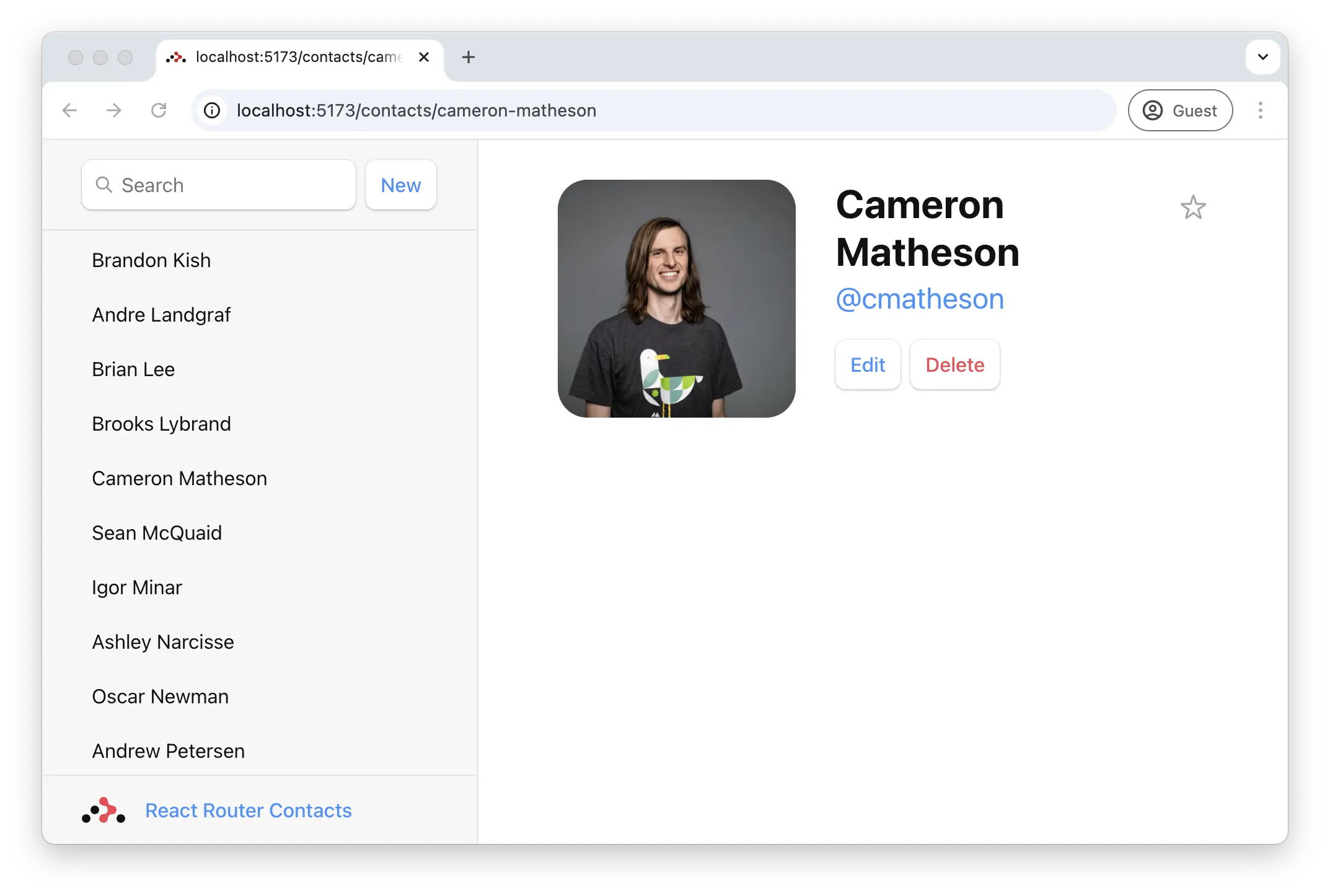
You'll notice that the type of `loaderData.contact` is `ContactRecord | null`. Based on our automatic type safety, TypeScript already knows that `params.contactId` is a string, but we haven't done anything to make sure it's a valid ID. Since the contact might not exist, `getContact` could return `null`, which is why we have type errors.
We could account for the possibility of the contact being not found in component code, but the webby thing to do is send a proper 404. We can do that in the loader and solve all of our problems at once.
```tsx filename=app/routes/contact.tsx lines=[5-7]
// existing imports
export async function loader({ params }: Route.LoaderArgs) {
const contact = await getContact(params.contactId);
if (!contact) {
throw new Response("Not Found", { status: 404 });
}
return { contact };
}
// existing code
```
Now, if the user isn't found, code execution down this path stops and React Router renders the error path instead. Components in React Router can focus only on the happy path 😁
## Data Mutations
We'll create our first contact in a second, but first let's talk about HTML.
React Router emulates HTML Form navigation as the data mutation primitive, which used to be the only way prior to the JavaScript cambrian explosion. Don't be fooled by the simplicity! Forms in React Router give you the UX capabilities of client rendered apps with the simplicity of the "old school" web model.
While unfamiliar to some web developers, HTML `form`s actually cause a navigation in the browser, just like clicking a link. The only difference is in the request: links can only change the URL while `form`s can also change the request method (`GET` vs. `POST`) and the request body (`POST` form data).
Without client side routing, the browser will serialize the `form`'s data automatically and send it to the server as the request body for `POST`, and as [`URLSearchParams`][url-search-params] for `GET`. React Router does the same thing, except instead of sending the request to the server, it uses client side routing and sends it to the route's [`action`][action] function.
We can test this out by clicking the "New" button in our app.
## Throwing Responses
You'll notice that the type of `loaderData.contact` is `ContactRecord | null`. Based on our automatic type safety, TypeScript already knows that `params.contactId` is a string, but we haven't done anything to make sure it's a valid ID. Since the contact might not exist, `getContact` could return `null`, which is why we have type errors.
We could account for the possibility of the contact being not found in component code, but the webby thing to do is send a proper 404. We can do that in the loader and solve all of our problems at once.
```tsx filename=app/routes/contact.tsx lines=[5-7]
// existing imports
export async function loader({ params }: Route.LoaderArgs) {
const contact = await getContact(params.contactId);
if (!contact) {
throw new Response("Not Found", { status: 404 });
}
return { contact };
}
// existing code
```
Now, if the user isn't found, code execution down this path stops and React Router renders the error path instead. Components in React Router can focus only on the happy path 😁
## Data Mutations
We'll create our first contact in a second, but first let's talk about HTML.
React Router emulates HTML Form navigation as the data mutation primitive, which used to be the only way prior to the JavaScript cambrian explosion. Don't be fooled by the simplicity! Forms in React Router give you the UX capabilities of client rendered apps with the simplicity of the "old school" web model.
While unfamiliar to some web developers, HTML `form`s actually cause a navigation in the browser, just like clicking a link. The only difference is in the request: links can only change the URL while `form`s can also change the request method (`GET` vs. `POST`) and the request body (`POST` form data).
Without client side routing, the browser will serialize the `form`'s data automatically and send it to the server as the request body for `POST`, and as [`URLSearchParams`][url-search-params] for `GET`. React Router does the same thing, except instead of sending the request to the server, it uses client side routing and sends it to the route's [`action`][action] function.
We can test this out by clicking the "New" button in our app.
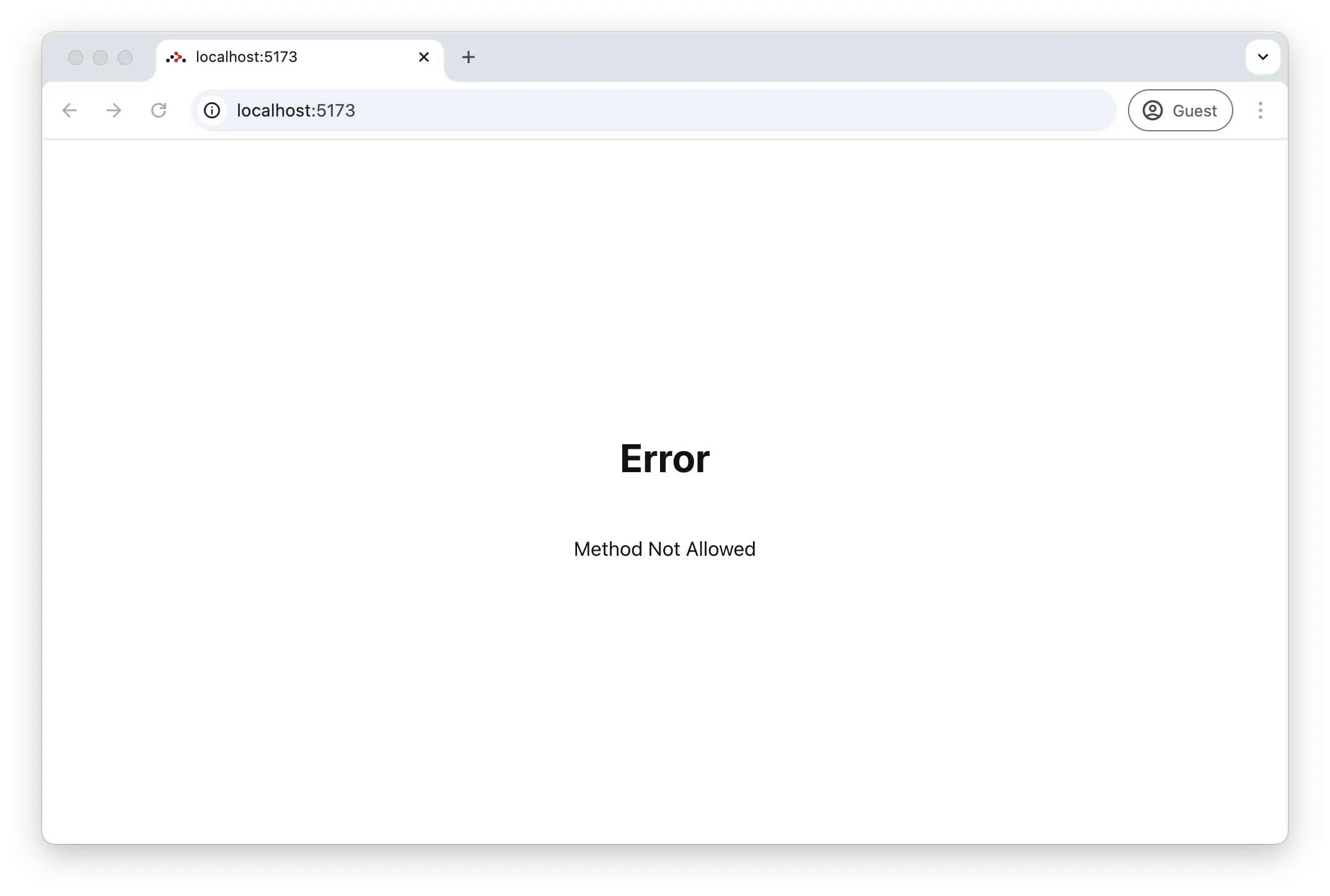 React Router sends a 405 because there is no code on the server to handle this form navigation.
## Creating Contacts
We'll create new contacts by exporting an `action` function in our root route. When the user clicks the "new" button, the form will `POST` to the root route action.
👉 **Export an `action` function from `app/root.tsx`**
```tsx filename=app/root.tsx lines=[3,5-8]
// existing imports
import { createEmptyContact } from "./data";
export async function action() {
const contact = await createEmptyContact();
return { contact };
}
// existing code
```
That's it! Go ahead and click the "New" button, and you should see a new record pop into the list 🥳
React Router sends a 405 because there is no code on the server to handle this form navigation.
## Creating Contacts
We'll create new contacts by exporting an `action` function in our root route. When the user clicks the "new" button, the form will `POST` to the root route action.
👉 **Export an `action` function from `app/root.tsx`**
```tsx filename=app/root.tsx lines=[3,5-8]
// existing imports
import { createEmptyContact } from "./data";
export async function action() {
const contact = await createEmptyContact();
return { contact };
}
// existing code
```
That's it! Go ahead and click the "New" button, and you should see a new record pop into the list 🥳
 The `createEmptyContact` method just creates an empty contact with no name or data or anything. But it does still create a record, promise!
> 🧐 Wait a sec ... How did the sidebar update? Where did we call the `action` function? Where's the code to re-fetch the data? Where are `useState`, `onSubmit` and `useEffect`?!
This is where the "old school web" programming model shows up. [`
);
}
```
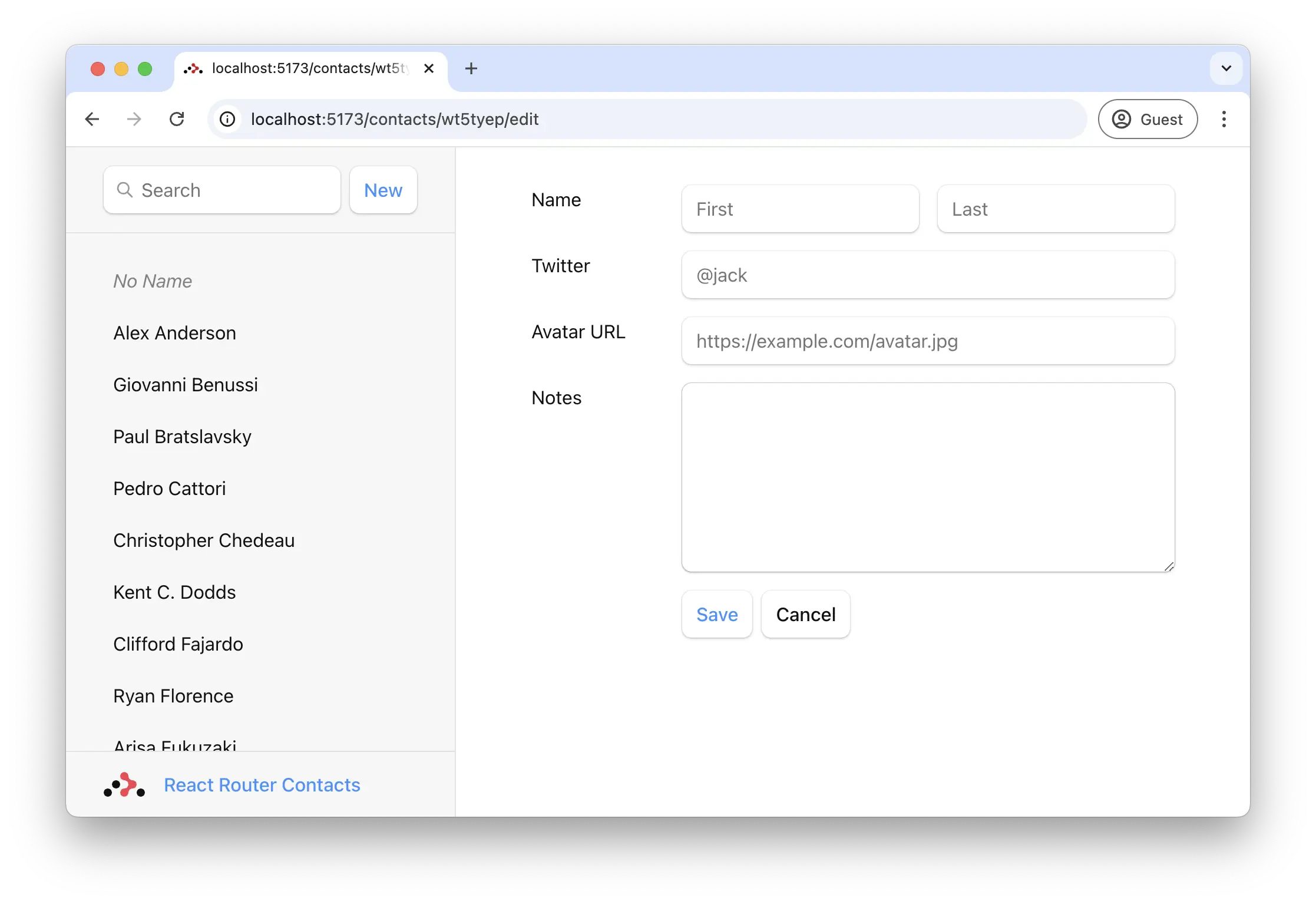
Now click on your new record, then click the "Edit" button. We should see the new route.
The `createEmptyContact` method just creates an empty contact with no name or data or anything. But it does still create a record, promise!
> 🧐 Wait a sec ... How did the sidebar update? Where did we call the `action` function? Where's the code to re-fetch the data? Where are `useState`, `onSubmit` and `useEffect`?!
This is where the "old school web" programming model shows up. [`
);
}
```
Now click on your new record, then click the "Edit" button. We should see the new route.
 ## Updating Contacts with `FormData`
The edit route we just created already renders a `form`. All we need to do is add the `action` function. React Router will serialize the `form`, `POST` it with [`fetch`][fetch], and automatically revalidate all the data.
👉 **Add an `action` function to the edit route**
```tsx filename=app/routes/edit-contact.tsx lines=[1,4,8,6-15]
import { Form, redirect } from "react-router";
// existing imports
import { getContact, updateContact } from "../data";
export async function action({
params,
request,
}: Route.ActionArgs) {
const formData = await request.formData();
const updates = Object.fromEntries(formData);
await updateContact(params.contactId, updates);
return redirect(`/contacts/${params.contactId}`);
}
// existing code
```
Fill out the form, hit save, and you should see something like this! (Except easier on the eyes and maybe with the patience to cut watermelon.)
## Updating Contacts with `FormData`
The edit route we just created already renders a `form`. All we need to do is add the `action` function. React Router will serialize the `form`, `POST` it with [`fetch`][fetch], and automatically revalidate all the data.
👉 **Add an `action` function to the edit route**
```tsx filename=app/routes/edit-contact.tsx lines=[1,4,8,6-15]
import { Form, redirect } from "react-router";
// existing imports
import { getContact, updateContact } from "../data";
export async function action({
params,
request,
}: Route.ActionArgs) {
const formData = await request.formData();
const updates = Object.fromEntries(formData);
await updateContact(params.contactId, updates);
return redirect(`/contacts/${params.contactId}`);
}
// existing code
```
Fill out the form, hit save, and you should see something like this! (Except easier on the eyes and maybe with the patience to cut watermelon.)
 ## Mutation Discussion
> 😑 It worked, but I have no idea what is going on here...
Let's dig in a bit...
Open up `app/routes/edit-contact.tsx` and look at the `form` elements. Notice how they each have a name:
```tsx filename=app/routes/edit-contact.tsx lines=[4]
```
Without JavaScript, when a form is submitted, the browser will create [`FormData`][form-data] and set it as the body of the request when it sends it to the server. As mentioned before, React Router prevents that and emulates the browser by sending the request to your `action` function with [`fetch`][fetch] instead, including the [`FormData`][form-data].
Each field in the `form` is accessible with `formData.get(name)`. For example, given the input field from above, you could access the first and last names like this:
```tsx filename=app/routes/edit-contact.tsx lines=[6,7] nocopy
export const action = async ({
params,
request,
}: ActionFunctionArgs) => {
const formData = await request.formData();
const firstName = formData.get("first");
const lastName = formData.get("last");
// ...
};
```
Since we have a handful of form fields, we used [`Object.fromEntries`][object-from-entries] to collect them all into an object, which is exactly what our `updateContact` function wants.
```tsx filename=app/routes/edit-contact.tsx nocopy
const updates = Object.fromEntries(formData);
updates.first; // "Some"
updates.last; // "Name"
```
Aside from the `action` function, none of these APIs we're discussing are provided by React Router: [`request`][request], [`request.formData`][request-form-data], [`Object.fromEntries`][object-from-entries] are all provided by the web platform.
After we finished the `action`, note the [`redirect`][redirect] at the end:
```tsx filename=app/routes/edit-contact.tsx lines=[9]
export async function action({
params,
request,
}: Route.ActionArgs) {
invariant(params.contactId, "Missing contactId param");
const formData = await request.formData();
const updates = Object.fromEntries(formData);
await updateContact(params.contactId, updates);
return redirect(`/contacts/${params.contactId}`);
}
```
`action` and `loader` functions can both return a `Response` (makes sense, since they received a [`Request`][request]!). The [`redirect`][redirect] helper just makes it easier to return a [`Response`][response] that tells the app to change locations.
Without client side routing, if a server redirected after a `POST` request, the new page would fetch the latest data and render. As we learned before, React Router emulates this model and automatically revalidates the data on the page after the `action` call. That's why the sidebar automatically updates when we save the form. The extra revalidation code doesn't exist without client side routing, so it doesn't need to exist with client side routing in React Router either!
One last thing. Without JavaScript, the [`redirect`][redirect] would be a normal redirect. However, with JavaScript it's a client-side redirect, so the user doesn't lose client state like scroll positions or component state.
## Redirecting new records to the edit page
Now that we know how to redirect, let's update the action that creates new contacts to redirect to the edit page:
👉 **Redirect to the new record's edit page**
```tsx filename=app/root.tsx lines=[6,12]
import {
Outlet,
Scripts,
ScrollRestoration,
isRouteErrorResponse,
redirect,
} from "react-router";
// existing imports
export async function action() {
const contact = await createEmptyContact();
return redirect(`/contacts/${contact.id}/edit`);
}
// existing code
```
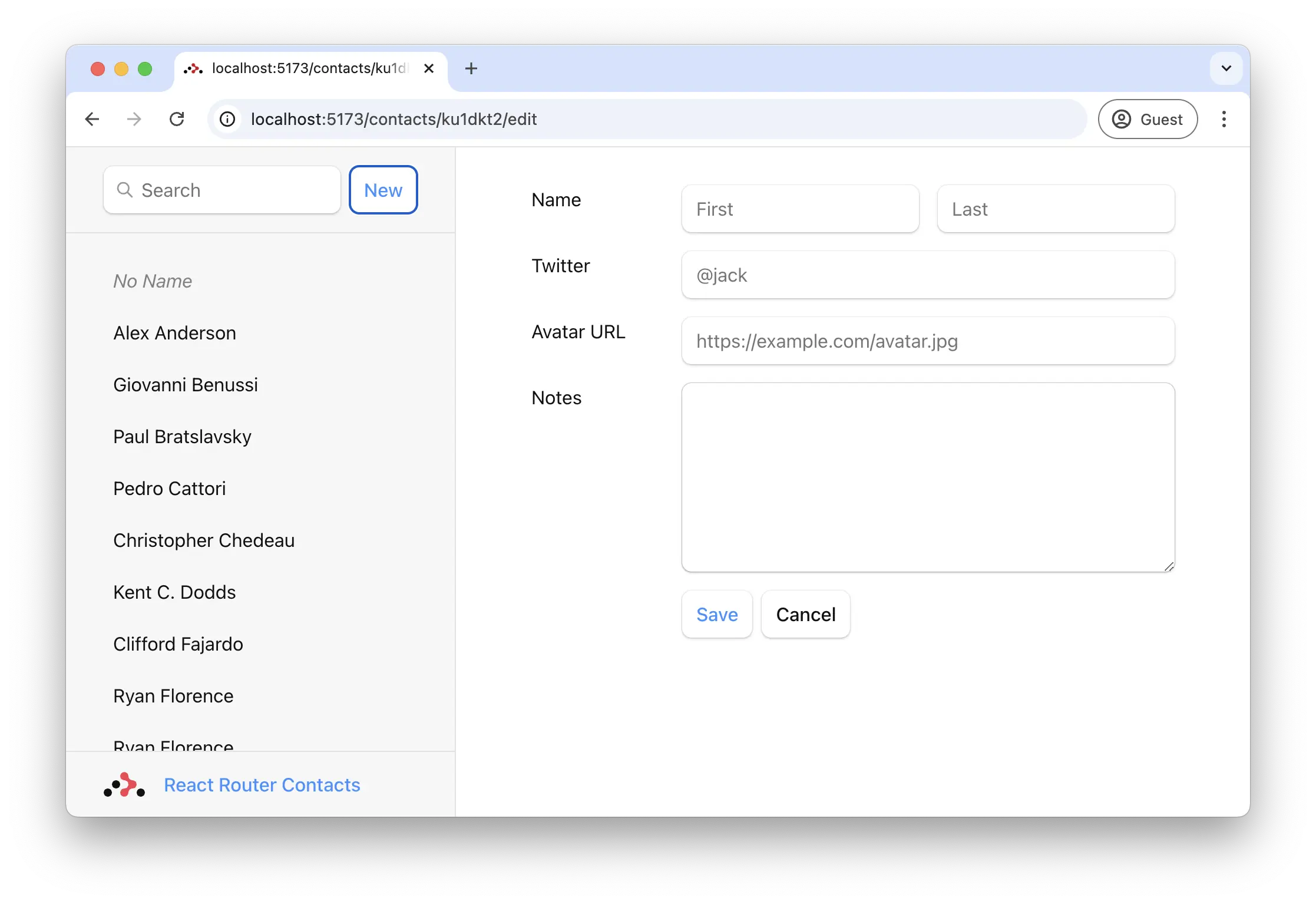
Now when we click "New", we should end up on the edit page:
## Mutation Discussion
> 😑 It worked, but I have no idea what is going on here...
Let's dig in a bit...
Open up `app/routes/edit-contact.tsx` and look at the `form` elements. Notice how they each have a name:
```tsx filename=app/routes/edit-contact.tsx lines=[4]
```
Without JavaScript, when a form is submitted, the browser will create [`FormData`][form-data] and set it as the body of the request when it sends it to the server. As mentioned before, React Router prevents that and emulates the browser by sending the request to your `action` function with [`fetch`][fetch] instead, including the [`FormData`][form-data].
Each field in the `form` is accessible with `formData.get(name)`. For example, given the input field from above, you could access the first and last names like this:
```tsx filename=app/routes/edit-contact.tsx lines=[6,7] nocopy
export const action = async ({
params,
request,
}: ActionFunctionArgs) => {
const formData = await request.formData();
const firstName = formData.get("first");
const lastName = formData.get("last");
// ...
};
```
Since we have a handful of form fields, we used [`Object.fromEntries`][object-from-entries] to collect them all into an object, which is exactly what our `updateContact` function wants.
```tsx filename=app/routes/edit-contact.tsx nocopy
const updates = Object.fromEntries(formData);
updates.first; // "Some"
updates.last; // "Name"
```
Aside from the `action` function, none of these APIs we're discussing are provided by React Router: [`request`][request], [`request.formData`][request-form-data], [`Object.fromEntries`][object-from-entries] are all provided by the web platform.
After we finished the `action`, note the [`redirect`][redirect] at the end:
```tsx filename=app/routes/edit-contact.tsx lines=[9]
export async function action({
params,
request,
}: Route.ActionArgs) {
invariant(params.contactId, "Missing contactId param");
const formData = await request.formData();
const updates = Object.fromEntries(formData);
await updateContact(params.contactId, updates);
return redirect(`/contacts/${params.contactId}`);
}
```
`action` and `loader` functions can both return a `Response` (makes sense, since they received a [`Request`][request]!). The [`redirect`][redirect] helper just makes it easier to return a [`Response`][response] that tells the app to change locations.
Without client side routing, if a server redirected after a `POST` request, the new page would fetch the latest data and render. As we learned before, React Router emulates this model and automatically revalidates the data on the page after the `action` call. That's why the sidebar automatically updates when we save the form. The extra revalidation code doesn't exist without client side routing, so it doesn't need to exist with client side routing in React Router either!
One last thing. Without JavaScript, the [`redirect`][redirect] would be a normal redirect. However, with JavaScript it's a client-side redirect, so the user doesn't lose client state like scroll positions or component state.
## Redirecting new records to the edit page
Now that we know how to redirect, let's update the action that creates new contacts to redirect to the edit page:
👉 **Redirect to the new record's edit page**
```tsx filename=app/root.tsx lines=[6,12]
import {
Outlet,
Scripts,
ScrollRestoration,
isRouteErrorResponse,
redirect,
} from "react-router";
// existing imports
export async function action() {
const contact = await createEmptyContact();
return redirect(`/contacts/${contact.id}/edit`);
}
// existing code
```
Now when we click "New", we should end up on the edit page:
 ## Active Link Styling
Now that we have a bunch of records, it's not clear which one we're looking at in the sidebar. We can use [`NavLink`][nav-link] to fix this.
👉 **Replace `` with `
## Active Link Styling
Now that we have a bunch of records, it's not clear which one we're looking at in the sidebar. We can use [`NavLink`][nav-link] to fix this.
👉 **Replace `` with `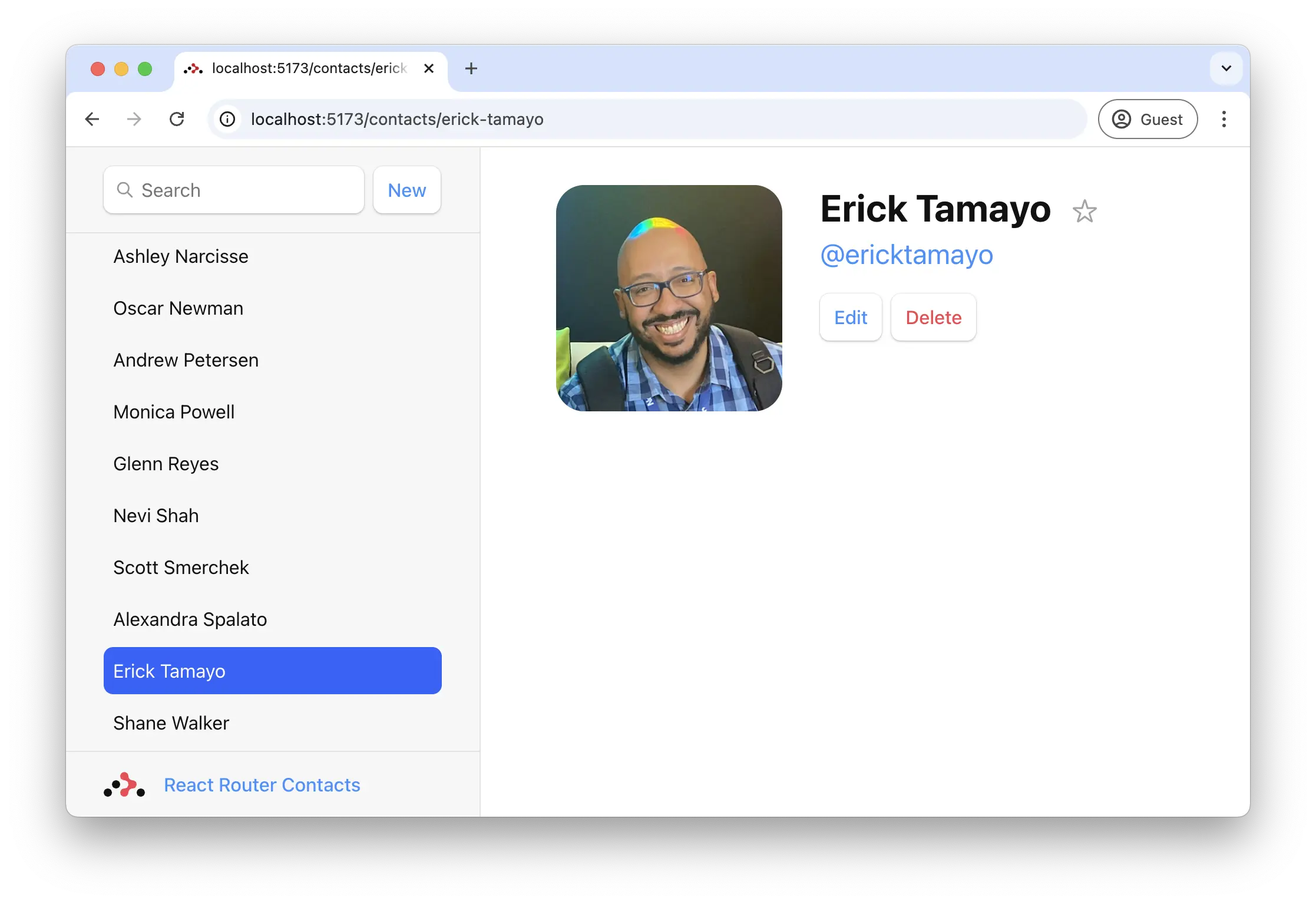 ## Global Pending UI
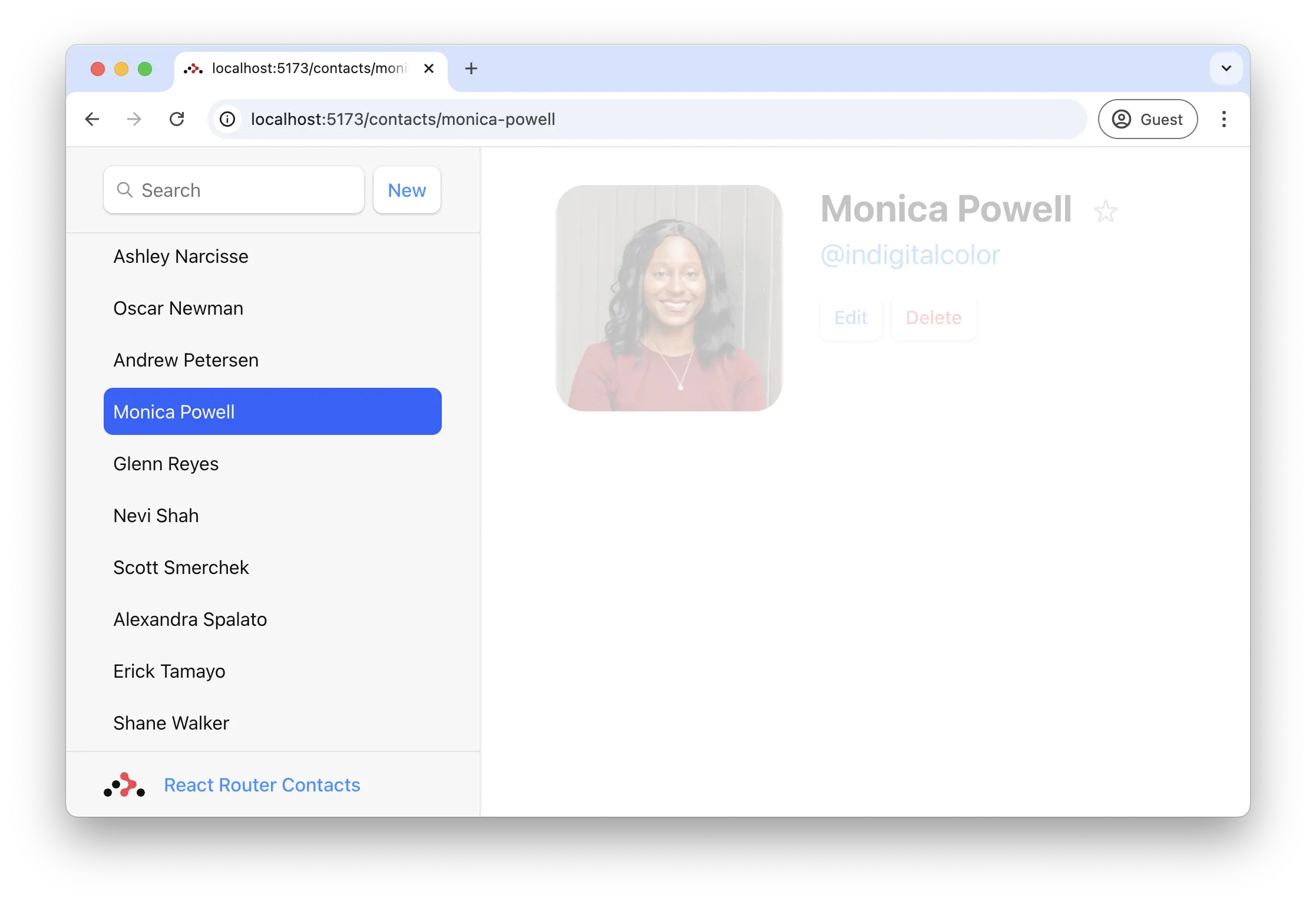
As the user navigates the app, React Router will _leave the old page up_ as data is loading for the next page. You may have noticed the app feels a little unresponsive as you click between the list. Let's provide the user with some feedback so the app doesn't feel unresponsive.
React Router is managing all the state behind the scenes and reveals the pieces you need to build dynamic web apps. In this case, we'll use the [`useNavigation`][use-navigation] hook.
👉 **Use `useNavigation` to add global pending UI**
```tsx filename=app/layouts/sidebar.tsx lines=[6,13,19-21]
import {
Form,
Link,
NavLink,
Outlet,
useNavigation,
} from "react-router";
export default function SidebarLayout({
loaderData,
}: Route.ComponentProps) {
const { contacts } = loaderData;
const navigation = useNavigation();
return (
<>
{/* existing elements */}
## Global Pending UI
As the user navigates the app, React Router will _leave the old page up_ as data is loading for the next page. You may have noticed the app feels a little unresponsive as you click between the list. Let's provide the user with some feedback so the app doesn't feel unresponsive.
React Router is managing all the state behind the scenes and reveals the pieces you need to build dynamic web apps. In this case, we'll use the [`useNavigation`][use-navigation] hook.
👉 **Use `useNavigation` to add global pending UI**
```tsx filename=app/layouts/sidebar.tsx lines=[6,13,19-21]
import {
Form,
Link,
NavLink,
Outlet,
useNavigation,
} from "react-router";
export default function SidebarLayout({
loaderData,
}: Route.ComponentProps) {
const { contacts } = loaderData;
const navigation = useNavigation();
return (
<>
{/* existing elements */}
 ## Deleting Records
If we review code in the contact route, we can find the delete button looks like this:
```tsx filename=app/routes/contact.tsx lines=[2]
```
Note the `action` points to `"destroy"`. Like ``, `
);
}
```
Now when the user clicks "Cancel", they'll be sent back one entry in the browser's history.
> 🧐 Why is there no `event.preventDefault()` on the button?
A `
## Deleting Records
If we review code in the contact route, we can find the delete button looks like this:
```tsx filename=app/routes/contact.tsx lines=[2]
```
Note the `action` points to `"destroy"`. Like ``, `
);
}
```
Now when the user clicks "Cancel", they'll be sent back one entry in the browser's history.
> 🧐 Why is there no `event.preventDefault()` on the button?
A `